

In case you have been involved in digital marketing before, then you are well aware that data is not just a set of figures appearing on your screen; it is the lifeline of your business. No matter whether you are spending a lot of money on SEO Services to improve your ranking position or launching a Google Ads campaign to attract customers instantly, you should be sure about the next move—and that’s exactly why you need to Set Up GA4 correctly from the beginning.
UA had always been the faithful sidekick we relied on for years. However, time and technology moved on. We went from being stuck on our mobiles to our computers and tablets. The concept of hits became obsolete. In stepped Google Analytics 4.
But what I understand from you is, “Again an update? Do I have to learn again?” My answer is yes. But here is the silver lining. Once you get GA4 set up, you will start seeing things far clearer than ever before.
Let’s take a look at why that is, and how to do it, starting with a review of sessions and events.
What exactly is Google Analytics 4 (GA4)?
Consider GA4 as an entire rethink on measuring the internet. The old model of tracking, known as UA, operated with “sessions,” which are essentially boxes that counted how much time users spent on their website. GA4 measures based on actions called events.
In GA4, every single thing a user does is an event. A page view? That’s an event. A click? Event. Scrolling down to read your blog? You guessed it—event.
This change has been brought about by the realization that the customer’s journey in today’s digital age is not a linear process. For instance, we may be exposed to a promotional advertisement using our smartphones and visit the website through a tablet before finally making the purchase on our computer.
The Big Shift: Difference Between GA4 and UA
Before we dive into the setup, let’s look at why your reports look so different now. Here is a breakdown of the difference between GA4 and UA:
| Feature | Universal Analytics (UA) | Google Analytics 4 (GA4) |
| Data Model | Session-based (Grouped by time) | Event-based (Every action is unique) |
| Tracking Method | Uses Cookies (Harder to track across devices) | Uses Events + Identity (Better cross-device tracking) |
| Role of Sessions | The foundation of all reporting | Just one of many events |
| Event Tracking | Required manual setup (Category/Action/Label) | Built-in “Enhanced Measurement” |
| Flexibility | Rigid, pre-defined reports | Highly customizable explorations |
| Cross-device Tracking | Limited and often fragmented | Native and seamless integration |
Let’s understand this… In UA, if a user visited your site, it was like a “visit to a store.” In GA4, it’s more like a “conversation with a person.” GA4 cares less about the “visit” and more about the “interactions.” It’s a smarter, more flexible way of looking at your audience.
Understanding Sessions in GA4: It’s Not What You Think
Now, you might be wondering: “If GA4 is all about events, did sessions just disappear?” Not at all! But how they are counted has changed.
In GA4, a session starts when a user opens your app or website. At that moment, GA4 automatically triggers a session_start event.
How a Session Works Now
- The 30-Minute Rule: Just like before, if a user is inactive for 30 minutes, the session ends. If they come back at minute 31, a new session starts.
- Continuous Browsing: Here is where it gets cool. In the old UA, if a user was on your site at midnight, UA would kill that session and start a new one for the new day. GA4 doesn’t do that. It lets the session keep going, which is much more accurate to real human behavior.
- No More New Campaigns Ending Sessions: In the old days, if a user arrived via one Google Ad, then clicked another ad 5 minutes later, UA would start a second session. GA4 says, “Hey, it’s still the same person,” and keeps it as one continuous session.
Understanding Events in GA4: The New Language of Data
In GA4, everything is an event. If a user breathes on your website (okay, maybe not that sensitive), GA4 wants to know about it.
The Three Flavors of Events
- Automatically Collected Events: These are the basics that GA4 tracks the moment you Set up GA4. Examples include first_visit and session_start.
- Improved Measurement: This is a “set it and forget it” type of measurement method that measures scroll depth, clicks out, searches on-site, and even videos, but without writing any additional lines of code.
- Custom Events: This would be a category of events that you create yourself in order to achieve certain business objectives, such as “clicked add to cart” and “downloaded ebook”.
This is where it starts to become quite exciting: With events being everything in this case, you can actually get a more detailed look at what users do.
Sessions vs. Events: The Container and the Contents
Let’s use a real-world analogy to make this crystal clear.
Imagine a Session is a shopping bag. Every time a customer walks into your store, they get a bag.
The Events are the items they put in the bag—a shirt, a pair of shoes, a hat.
In the old days (UA), we focused mostly on how many bags were handed out. In GA4, we care about every single item put into that bag.
A Detailed Scenario:
A user finds your website through an SEO Services article you wrote.
- They land on the site (Event: page_view, Event: session_start).
- They read for 10 minutes and scroll down (Event: scroll).
- They click a link to your “Services” page (Event: click).
- They stay on that page for 40 minutes while they go grab lunch.
- They come back, refresh, and look at one more page.
The result? That person had 2 Sessions (because they were inactive for over 30 minutes) but generated dozens of Events.
Step-by-Step Guide to Setup GA4
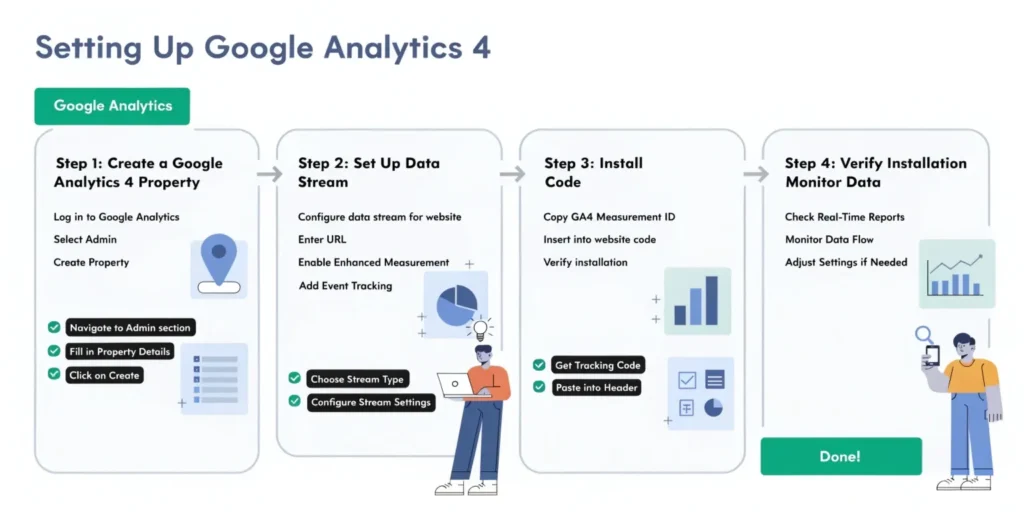
Ready to get your hands dirty? Don’t worry; it’s easier than it sounds. Follow these steps to Set up GA4 like a pro.
Step 1: Create Your Account & Property
Log into your Google Analytics account. Click Admin (the gear icon at the bottom left).
- Select Create Account (if you’re new) or Create Property.
- Name your property (usually your business name) and set your reporting time zone and currency.
Step 2: Create a Data Stream
GA4 needs to know where the data is coming from.
- Choose Web (assuming you’re setting this up for a website).
- Enter your URL and give the stream a name (e.g., “Main Website”).
Step 3: Get Your Measurement ID
Once the stream is created, you’ll see a “Measurement ID” (it starts with G-). Copy this! You’ll need it to connect your site to the data.
Step 4: Install Tracking
There are two main ways to do this:
- Google Tag Manager (Recommended): This is the cleanest way. Create a new tag, choose “Google Tag,” and paste your Measurement ID. Set the trigger to “All Pages.”
- Direct Installation: If you don’t use Tag Manager, you can copy the “Global Site Tag” (gtag.js) provided in the GA4 interface and paste it into the <head> section of every page on your website.
Step 5: Enable Enhanced Measurement
While in your Data Stream settings, make sure the “Enhanced measurement” toggle is ON. This ensures you’re automatically tracking scrolls, clicks, and downloads without extra work.
Step 6: Verify Your Setup
Open your website in a new tab. Go back to GA4 and click on the Realtime report. If you see yourself (a little dot on the map or a page view event), congratulations! You successfully set up Google Analytics 4.
Common Misconceptions About Sessions & Events
Before we wrap up, let’s clear the air on a few things I hear all the time:
- “GA4 doesn’t track sessions anymore.”
- Wrong! GA4 definitely tracks sessions. It just calculates them differently and focuses more on the actions within those sessions.
- “A session is the same thing as an event.”
- It is not exactly. An event starts a session (session_start); however, a session is a time-bound entity, and an event is an action.
- “Spending more time on the website equals more sessions.”
- Wrong. Even though the user spent 5 hours on browsing and reading, this would still be one session only because a new session can emerge after 30 minutes of complete quietness.”
Also Read: The Rise of Task Based Search and the New Era of AI Marketing
Key Takeaways for Your Business
Making the switch from Universal Analytics to GA4 is similar to moving into a new house: All the light switches are in different places, and the rooms are called by different names, but it doesn’t take long to recognize it as a better way of life for our modern times.
- GA4 is focused on events: It focuses on measuring the quality of the visit instead of just visits.
- Sessions are still important: They tell you about people’s behavior and their tendency to go back to your website.
- It is crucial to set up: Its Crucial to Set Up GA4, else, the data from Google Ads and SEO will be confusing and difficult to interpret.
- Focusing on Behavior: Utilize the new event tracking data to get insight into user behavior and content interaction.
Properly setting up your analytics is one of the best moves you can make regarding your digital marketing activities. It turns “we think our website is doing pretty good” into “We know everything about customer interactions”.
Take a deep breath, follow these steps, and say hello to the future!
After reading all of this information, do you plan to set up GA4 using GTM, or would you prefer an alternative way?