
Key Takeaways
| Takeaway | What You Need to Know |
| What It Is | Robots.txt file is a plain text file at your domain root that tells search engine crawlers which pages to visit and which to skip. It is the first file any bot reads before crawling your site. |
| Primary Purpose | It controls crawling behavior — not indexing. Use it to guide bots toward valuable content and away from admin panels, duplicate URLs, and low-value pages. |
| Crawl Budget | Every site has a crawl budget — a limit on how many pages Google crawls per session. Robots.txt helps protect this budget by blocking irrelevant URLs so bots focus on pages that matter. |
| Core Directives | The four key directives are: User-agent (who the rule applies to), Disallow (what to block), Allow (what to explicitly permit), and Sitemap (where your XML sitemap lives). |
| Crawling ≠ Indexing | Blocking a page in robots.txt prevents crawling — it does NOT prevent indexing. Google can still index a page based on external links alone. Use noindex meta tags to prevent indexing. |
| Not a Security Tool | Robots.txt is a public file — anyone can read it. Never list sensitive or confidential URLs in Disallow rules; this advertises them. Use server-side authentication for real privacy. |
| Biggest Mistake | Disallow: / blocks your entire site from all crawlers. This is devastating if left active after a staging deployment. Always audit your robots.txt after any site migration or CMS update. |
| Always Add a Sitemap | End every robots.txt file with Sitemap: [URL]. This gives crawlers a direct map to your most important pages and improves crawl efficiency significantly. |
| Robots.txt vs Meta Tags | Robots.txt blocks crawling at the directory/file level. Meta robots tags control indexing at the individual page level. Advanced SEO uses both together for complete control. |
| Always Test Changes | Use Google Search Console’s robots.txt tester before going live. Even a single typo in a file path can accidentally block pages you need indexed. |
| Wildcards & Patterns | Use * to match any character sequence and $ to anchor end-of-URL. Example: Disallow: /*? blocks all query-string URLs — ideal for blocking e-commerce filter pages. |
| Crawl-Delay Caution | Crawl-delay slows down bots between requests — useful for server protection. However, Google ignores this directive. For Google, manage crawl rate via Google Search Console instead. |
| Disallowed ≠ Hidden | A disallowed page can still appear in search results if external sites link to it. Google may show just the URL with no description. To fully suppress it, combine robots.txt with noindex. |
| Keep It Clean | A robots.txt file with dozens of contradictory rules is a liability. Write clear, commented, purposeful rules. Remove outdated entries regularly and group rules by user-agent logically. |
| Validate Regularly | Robots.txt can be silently overwritten by CMS updates, plugins, or server migrations. Make it a habit to check and validate your robots.txt file at least once per quarter. |
What is a Robots.txt File and Why It Matters for Every Website
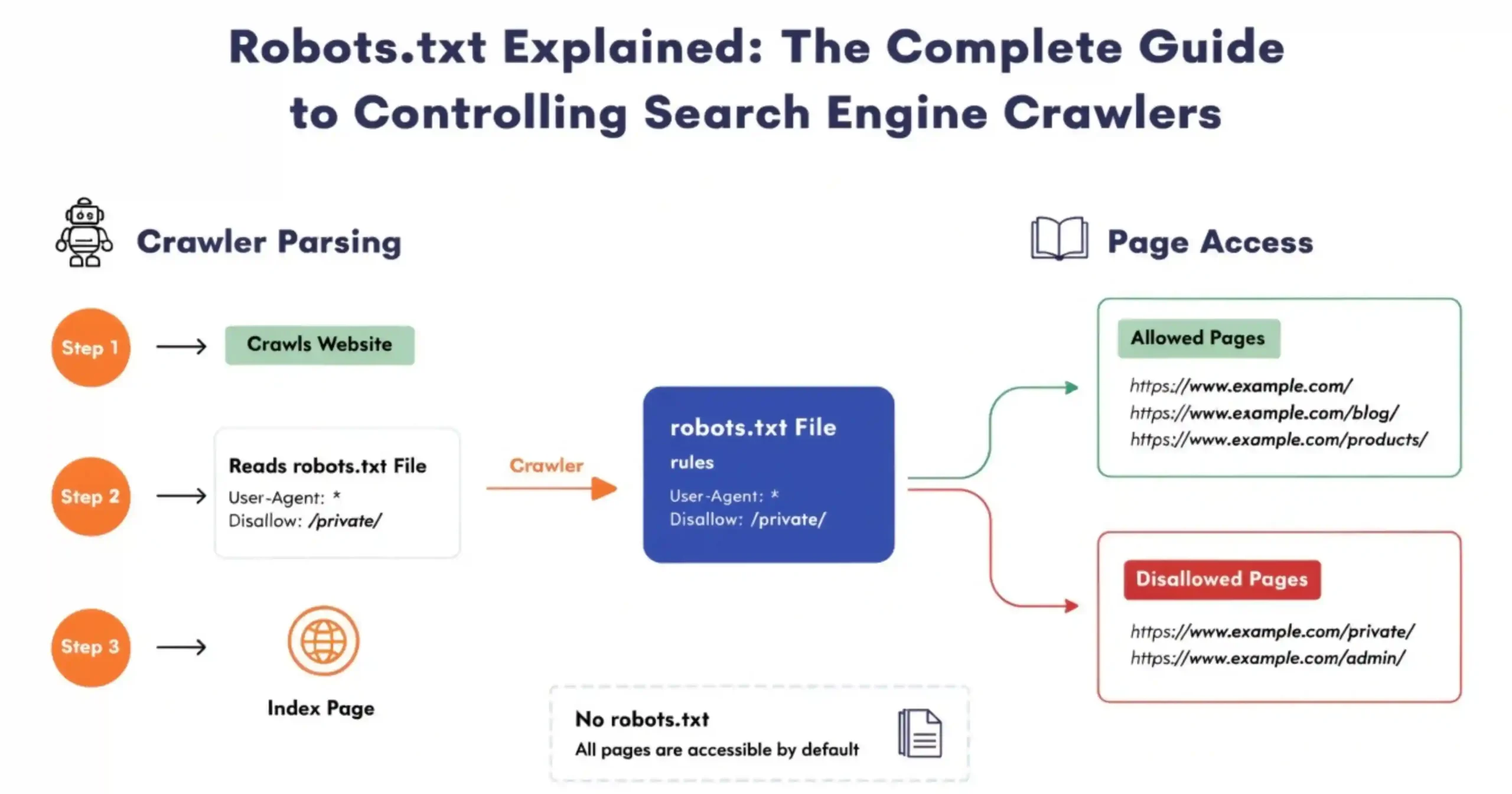
Think of a robots.txt file like a guide for search engine bots. This file is in the folder of your website and it tells the bots which parts of your website they can look at and which parts they should not.
When bots like Googlebot or Bingbot come to your website they check this file first. It helps them figure out how to look at your website in a way that makes sense.
If you do not have a robots.txt file the search engines will just look at everything, on your website. This means they will look at pages you probably do not want people to find, like the pages the login pages, the test areas or the duplicate pages. Over time this can be a problem because it wastes the number of times the bots can look at your website and it can even hurt your search engine ranking by showing people things that’re not very useful. A robots.txt file is important because it helps the bots understand what to do when they visit your website.
A Simple Example to Understand How Robots.txt Works
Think of your website like an office building. The robots.txt file is, like the desk where security sits. It gives directions to people who come to visit like search engine bots. Tells them which parts of the building they can go to and which parts they should not go to.
Here is a basic example of a robots.txt file:
- User-agent: *
- Disallow: /admin/
- Disallow: /login/
- Allow: /blog/
- Sitemap: https://www.example.com/sitemap.xml
So in this example all the bots are not allowed to go to the /login/ areas but they can go to the /blog/ area. You are also showing them where the sitemap is so they can find all the things on your website easily. The robots.txt file is helping the search engine bots by telling them what they can and cannot do on your website, like the /admin/ and /login/ areas and where they can go, like the /blog/ area.
Also Read: Google Confirms You Can Disavow Entire TLDs Like .xyz Using the Domain Directive
How Search Engines Like Google Discover and Read Robots.txt
When the Googlebot visits your website it looks for the robots.txt file away at
- https://yourdomain.com/robots.txt
Googlebot checks this file. If the Googlebot finds the file it reads the thing from top to bottom. Then the Googlebot follows the rules that’re most important for the Googlebot. If the Googlebot does not find the file the Googlebot thinks it can look at everything on your website.
The Googlebot usually updates its copy of your robots.txt file every 24 hours. So if you make any changes to the robots.txt file it might take the Googlebot up, to a day to see these changes.
Understanding the Purpose of Robots.txt in SEO
Robots.txt helps control how search engines look at your website. You can use Robots.txt to stop search engines from looking at pages that’re not important like pages that are the same or pages that are only for people who work on your website. This helps search engines focus on the pages that’re important for your business.
The role of Robots.txt is to help manage how search engines look at your website. Every website has a limit on how many pages search engines can look at in an amount of time. This is not a problem for websites but it is a big deal for big websites with a lot of pages like online stores or news websites.
By stopping search engines from looking at pages that’re not important like pages that help people find things on your website or pages that show search results you can make sure that Google looks at the pages that are important, to you.
When search engines look at pages that’re not important they might not have time to look at your good pages. Robots.txt helps you decide what pages are important so search engines can look at those pages first. This can help your website show up faster in search results. Can even help you get a better ranking.
How Robots.txt Actually Works
What Are User-Agents and How Crawlers Like Googlebot Follow Instructions
A crawler uses a user-agent to identify itself.For instance Google’s main crawler says it is ‘Googlebot’.Bings crawler says it is ‘Bingbot’.You can make rules for a crawler.You can use * to apply rules to all crawlers.This helps you control how different crawlers interact with your site.You can target Googlebot or Bingbot specifically.You can set general rules for all crawlers.
Step-by-Step Process of How Crawlers Interpret Robots.txt Rules
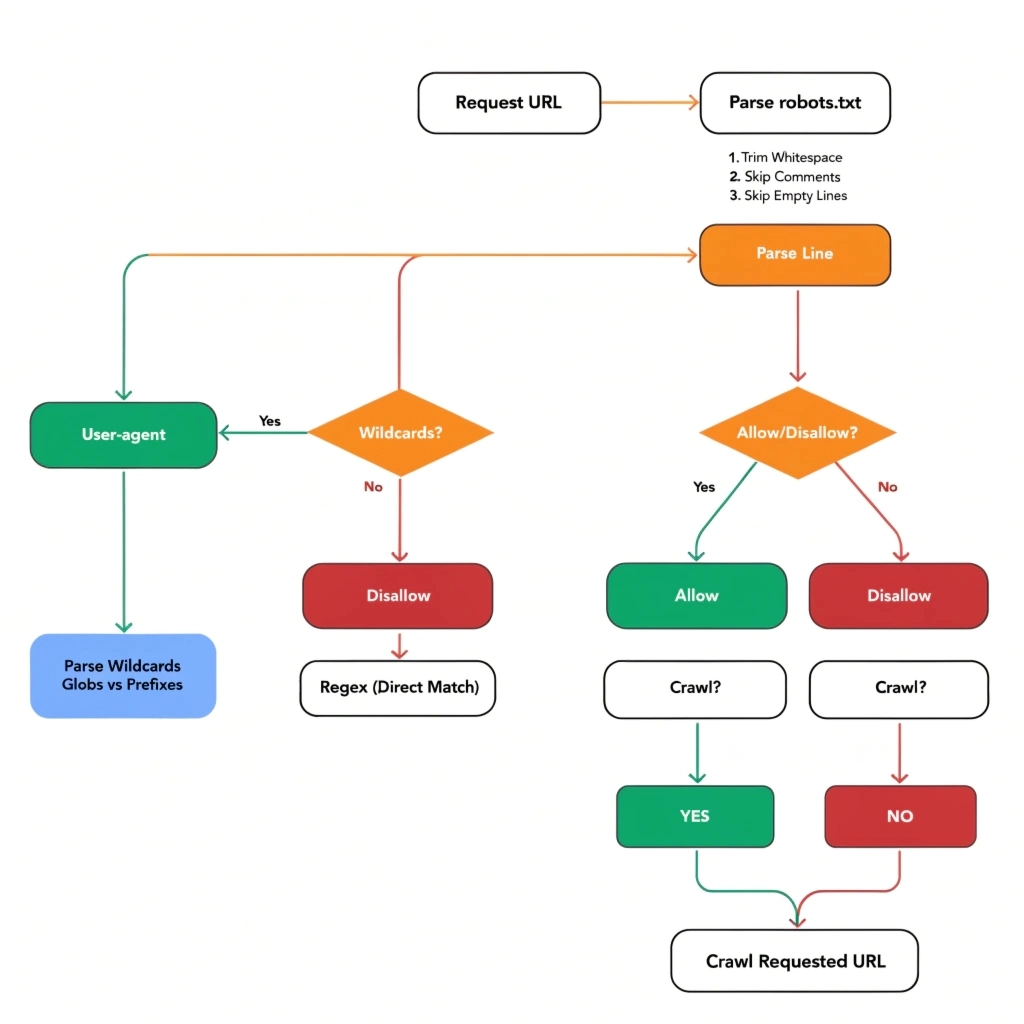
- Crawlers do things in an order when they look at robots.txt.
- They get the robots.txt file from the website domain.
- Then they find all the rules. Pick the one that is most relevant to their user-agent.
- Next they compare the website address they want to visit against the rules that say what is allowed and what is not allowed in that section.
- The rule that is most specific is the one that matters. If the allow and disallow rules are equally specific then the allow rule is what counts.
- If the crawler does not find any rules that match then the crawler will go ahead. Access the webpage. Crawlers follow this process when reading robots.txt to figure out what they can and cannot do on a website.
What Happens When a Page is Disallowed in Robots.txt
When a page is not allowed the thing that looks at websites will not go to it.. The page can still show up when people search for things if other websites have a link, to it. Google might add the website address to its list even if it does not look at the content just because other websites are linking to it. If you want to stop Google from adding the page to its list all you need to use a special tag that says do not add this page to the list or you need to use a special header that tells Google the same thing the noindex meta tag or the X-Robots-Tag HTTP header.
Key Directives Used in Robots.txt
Below is a quick reference table of the main robots.txt directives:
| Directive | Purpose | Example |
| User-agent | Specifies which crawler the rules apply to | User-agent: Googlebot |
| Disallow | Blocks crawling of a path or file | Disallow: /admin/ |
| Allow | Permits crawling of a specific path (overrides Disallow) | Allow: /public/ |
| Sitemap | Points crawlers to your XML sitemap | Sitemap: https://example.com/sitemap.xml |
| Crawl-delay | Sets delay between requests (not supported by Google) | Crawl-delay: 10 |
Understanding the User-agent Directive with Examples
The User-agent directive specifies which crawler the following rules apply to. You can create separate rule blocks for different bots:
- User-agent: Googlebot
- Disallow: /staging/
- User-agent: Bingbot
- Disallow: /internal/
- User-agent: *
- Disallow: /private/
How the Disallow Directive Restricts Crawling of Pages and Folders
The Disallow directive tells a crawler not to access a specific URL path. You can block entire directories, specific pages, or use wildcards for pattern matching:
- Disallow: / # Blocks entire site
- Disallow: /admin/ # Blocks admin directory
- Disallow: /page.html # Blocks a specific page
Using the Allow Directive to Override Restrictions in Specific Cases
The Allow directive is used to grant crawling permission to a specific path, even when a broader Disallow rule would otherwise block it. This is particularly useful when you want to block a directory but allow a specific file within it:
- User-agent: *
- Disallow: /images/
- Allow: /images/logo.png
How to Add and Use Sitemap Directive for Better Crawling
The Sitemap directive tells crawlers where to find your XML sitemap. This is not technically part of the Robots Exclusion Protocol, but it is widely supported and recommended:
- Sitemap: https://www.example.com/sitemap.xml
- Sitemap: https://www.example.com/sitemap-news.xml
Structure and Syntax of a Robots.txt File
A robots.txt file must follow specific formatting rules:
- Each directive must be on its own line.
- Directives are case-sensitive (User-agent, Disallow, Allow must be capitalized exactly).
- Comments begin with a # character.
- There must be a blank line between different user-agent rule blocks.
- The file must be saved in UTF-8 encoding without a BOM (byte order mark).
- The file must be accessible at https://yourdomain.com/robots.txt.
Proper Formatting and Common Patterns Used in Robots.txt
Rules are processed in order. The most specific rule wins. Wildcards can be used for flexible pattern matching. Here are common formatting patterns:
- User-agent: * # Applies to all crawlers
- Disallow: /private/ # Block a directory
- Disallow: /*.pdf$ # Block all PDF files
- Disallow: /*? # Block all URLs with query strings
- Allow: /public/ # Explicitly allow a path
Sample Robots.txt File with Detailed Explanation
Here is a comprehensive, annotated sample robots.txt file for a typical website:
- # Block all crawlers from admin and login pages
- User-agent: *
- Disallow: /admin/
- Disallow: /login/
- Disallow: /cart/
- Disallow: /checkout/
- Disallow: /search?
- Allow: /
- # Block Bing from staging environment
- User-agent: Bingbot
- Disallow: /staging/
- # Sitemap location
- Sitemap: https://www.example.com/sitemap.xml
Common Use Cases of Robots.txt
Blocking Admin, Login, and Private Sections of a Website
One of the most common uses of robots.txt is blocking internal pages from being crawled. Pages like /admin/, /login/, /dashboard/, and /account/ serve no purpose in search results and should always be blocked:
- User-agent: *
- Disallow: /admin/
- Disallow: /wp-admin/
- Disallow: /login/
- Disallow: /account/
Preventing Crawling of Duplicate, Filter, or Parameter-Based URLs
E-commerce sites often have hundreds of filter combinations that create duplicate or near-duplicate URLs. These can waste crawl budget and dilute your site’s authority. Block them using query string patterns:
- Disallow: /*?color=
- Disallow: /*?size=
- Disallow: /*?sort=
Allowing Important Pages While Restricting Low-Value Content
You can use a combination of Disallow and Allow to be very precise about what gets crawled. For example, blocking an entire section but allowing specific important pages within it:
- Disallow: /news/archive/
- Allow: /news/archive/featured/
Robots.txt vs Meta Robots Tag
The table below summarises the key differences between robots.txt and the meta robots tag:
| Feature | Robots.txt | Meta Robots Tag |
| Location | Root of the website (/robots.txt) | Inside the <head> of individual pages |
| Scope | Entire site or directories | Single page only |
| Prevents Crawling | Yes | No (page still crawled) |
| Prevents Indexing | No (directly) | Yes (noindex directive) |
| Best For | Blocking sections, saving crawl budget | Fine-grained index control per page |
| Respects by All Bots | Not always (malicious bots ignore it) | More widely respected for indexing |
| Visible to Public | Yes | Only in page source |
Key differences between robots.txt and meta robots tag explained clearly
Robots.txt is like a gatekeeper that decides if a crawler can even look at a webpage. The meta robots tag is like a sign on the webpage that says whether the page can be added to a search engine or if links on the page should be followed. These two things work together they are not either.
When to use robots.txt versus tags for better control over search engines
You should use robots.txt when you want to stop a crawler from looking at a whole section of your website or a big group of files. On the hand use meta robots tags when you want a webpage to be looked at by a crawler but you do not want it to be added to a search engine. Like a thank you page or a page that shows search results.
Combining both for management of webpages
The best way to control search engines is to use both robots.txt and meta robots tags together. You can use robots.txt to stop crawlers from wasting time on webpages and use noindex meta tags on webpages that should be looked at but not added to a search engine.
Limitations of robots.txt that you should know about
- Why robots.txt does not guarantee that your webpage is secure: Robots.txt is a file that anyone can look at just by going to your website and adding /robots.txt to the end of the address. This can actually show people who want to hurt your website what it looks like. Also robots.txt only works on crawlers that follow the rules bad crawlers can just ignore it.
- Difference between looking at a webpage and adding it to a search engine explained: Looking at a webpage means a bot is visiting the webpage to read what is on it. Adding it to a search engine means the webpage might show up when people search for something. Robots.txt can only stop a webpage from being looked at it cannot stop it from being added to a search engine. A webpage can be added to a search engine even if it is not looked at if other websites link to it.
- Why webpages you say no to can still show up in search results: If another website links to a webpage that you said no to in robots.txt the search engine might still add it to its list and show it in search results but it will say something like “no information’s available, for this page”. To really stop a webpage from being added to a search engine you have to use a noindex directive or just get rid of the webpage.
Common Mistakes to Avoid in Robots.txt
Here are the most common robots.txt mistakes and how to fix them:
| Mistake | Impact | Fix |
| Disallow: / | Blocks entire site from being crawled | Remove or limit to specific paths |
| Using robots.txt for security | Malicious bots still read blocked pages | Use server-side authentication instead |
| Blocking CSS/JS files | Google can’t render pages properly | Allow access to essential resources |
| Wrong file location | Crawlers can’t find the file | Place at https://yourdomain.com/robots.txt |
| Syntax typos | Rules may not be applied correctly | Validate using Google Search Console |
| Blocking sitemap directory | Prevents sitemap from being crawled | Always allow /sitemap.xml |
Best Practices for Optimizing Robots.txt
- Keep things simple — a clean file is easier for search engines to understand
- Don’t overcomplicate it with too many rules or confusing instructions
- Avoid conflicts between directives, as they can block important pages by mistake
- Always add your sitemap so search engines can quickly find your key pages
- Test everything before going live — even a small error can impact your site visibility
How to Create and Implement a Robots.txt File
Step-by-Step Guide
- Open any basic text editor (like Notepad) — no special tools needed
- Write the instructions (directives) for search engines in a clear way
- Save the file with the exact name robots.txt
- Upload it to your website’s root directory (main folder)
- Check if it’s accessible by visiting: yourwebsite.com/robots.txt
- Test it using Google Search Console to make sure it’s working properly
Advanced Robots.txt Techniques
Using Wildcards (*) and Pattern Matching for URL Control
The asterisk (*) wildcard can be used in URL patterns within Disallow and Allow directives. The dollar sign ($) anchors the match to the end of a URL. These allow you to write flexible rules that match many URLs at once:
- Disallow: /*.pdf$ # Block all PDF files
- Disallow: /search?* # Block all search result pages
- Disallow: /*?sessionid=* # Block session ID URLs
- Disallow: /category/*/page # Block paginated category pages
Blocking Specific File Types Like PDFs, Images, or Scripts
You might want to prevent crawlers from indexing certain file types. This is especially useful for large PDF libraries, proprietary scripts, or generated images that offer no SEO value:
- User-agent: *
- Disallow: /*.pdf$
- Disallow: /*.zip$
- Disallow: /assets/js/
- Disallow: /assets/css/
Note: Blocking CSS and JS files can prevent Google from rendering your pages properly. Only block these if you are sure they are not needed for rendering.
Understanding Crawl Delay Directive and Its Use Cases
The Crawl-delay directive instructs bots to wait a specified number of seconds between requests. This helps prevent heavy bot traffic from overloading your server:
- User-agent: *
- Crawl-delay: 10
Important: Google does not support the Crawl-delay directive. If you need to manage Googlebot’s crawl rate, use the crawl rate settings in Google Search Console instead. Crawl-delay is respected by some other crawlers, such as Bingbot.
Also Read: Cohort Analysis: A Complete Guide with Concepts, Calculations, and Practical Examples
Quick-Glance: Do’s & Don’ts
| ✅ DO | ❌ DON’T |
| Place robots.txt at your domain rootInclude your Sitemap URL at the bottomBlock admin, cart, and login pagesTest every change in Google Search ConsoleUse noindex tags to prevent indexing (not just robots.txt)Review your robots.txt after every site updateUse Allow to override broad Disallow rulesComment your rules with # for clarity | Use Disallow: / on your live siteList sensitive URLs inside robots.txtRely on robots.txt for security or privacyAssume disallowed = hidden from search resultsBlock CSS or JS files from GooglebotIgnore robots.txt after CMS or plugin updatesUse Crawl-delay expecting Google to respect itCreate complex conflicting rules without testing |
Remember: Robots.txt controls crawling. Meta robots controls indexing. Authentication controls access. Use each tool for its intended purpose and never confuse them.
Conclusion
The Robots.txt file is really important for your website. It helps search engines like Google find the stuff on your site. The Robots.txt file is simple. It does a big job. The Robots.txt file controls what the search engines look at on your site. It does not control what gets listed in search results. You can use the Robots.txt file to control how time the search engines spend looking at your site. Always check the Robots.txt file before you make it live on your website. The Robots.txt file works with other things like meta tags to help you control your website.
Frequently Ask Questions (FAQs)
| Q1 What exactly is a robots.txt file and where does it live on a website? |
| Basics A robots.txt file is a simple plain text file that sits at the root of your website — always accessible at https://yourdomain.com/robots.txt. It acts as a set of instructions for web crawlers, telling them which pages or sections of your site they are permitted to crawl and which they should skip. Every major search engine, including Google, Bing, and Yahoo, checks this file before crawling any page on your site. It must be saved in UTF-8 format and must be publicly accessible without any login or authentication. |
| Q2 Does blocking a page in robots.txt prevent it from appearing in Google search results? |
| Indexing No — and this is one of the most widely misunderstood facts about robots.txt. Blocking a page via Disallow only prevents Google from crawling it. It does not prevent indexing. If other websites link to that blocked page, Google can still discover and index it based on those external links alone. The search result may appear with a limited snippet (or none at all), but the URL will still show up in Google. If you want to truly prevent a page from being indexed, you must use a noindex directive in the page’s meta robots tag — and make sure the page is still crawlable so Google can read that instruction. |
| Q3 Can I use robots.txt to hide sensitive or confidential pages from the public? |
| Security Absolutely not — and doing so can actually backfire. Robots.txt is a fully public, unprotected file that anyone can read by simply visiting yoursite.com/robots.txt. If you list a sensitive URL under a Disallow rule thinking it will hide the page, you are in fact publishing that URL for the world to see. Bad actors, competitors, and curious users regularly scan robots.txt files for exactly this kind of information. If you need to restrict access to sensitive pages, use proper server-side authentication such as password protection, IP whitelisting, or login walls. Never use robots.txt as a privacy or security mechanism. |
| Q4 What happens if my website does not have a robots.txt file at all? |
| Basics If no robots.txt file exists at your domain root, search engine crawlers will receive a 404 (Not Found) response when they look for it. In this case, well-behaved crawlers like Googlebot interpret the absence of the file as permission to crawl all publicly accessible pages on your site without any restrictions. Your site will still be crawled and indexed normally. However, best practice is to always have a robots.txt file in place — even if it only contains a Sitemap reference — so you retain control over crawling behavior and can guide bots efficiently from day one. |
| Q5 What is crawl budget and how does robots.txt help manage it? |
| Crawl Budget Crawl budget is the number of pages Googlebot will crawl on your site within a given time window. For small websites, this rarely matters. But for large sites with thousands of URLs — such as e-commerce stores with filters, faceted navigation, or session-based URLs — crawl budget becomes a critical SEO resource. If bots waste their budget crawling low-value pages like /cart/, /checkout/, or URL parameters like ?color=red&sort=price, your important pages (product listings, blog posts, landing pages) may get crawled and indexed less frequently. Robots.txt lets you block these crawl traps, ensuring the budget is spent entirely on pages that drive real SEO value. |
| Q6 What is the difference between robots.txt and a meta robots tag? |
| vs Meta Tags They operate at different levels and serve different purposes. Robots.txt is a server-level file that controls which URLs are crawled — the bot never even visits a disallowed URL. The meta robots tag (e.g., <meta name=’robots’ content=’noindex’>) is embedded inside a specific page’s HTML and controls what happens after a bot has already crawled that page — specifically, whether to index it and whether to follow its outbound links. The critical implication: if you block a page in robots.txt, Google cannot read its meta robots tag. So if you want a page noindexed, you must keep it crawlable in robots.txt but add noindex in the page itself. |
| Q7 How do wildcards work in robots.txt and can I use them to block URL patterns? |
| Advanced Yes — most modern crawlers including Googlebot support two pattern-matching characters in robots.txt. The asterisk (*) in a path matches any sequence of characters. The dollar sign ($) anchors the match to the end of the URL. For example: Disallow: /*? blocks all URLs containing a query string, which is perfect for blocking filter pages on e-commerce sites. Disallow: /*.pdf$ blocks all PDF file URLs. Disallow: /*/print/ blocks any /print/ subfolder across your site. Note that these are applied to paths only — not full URLs — and some crawlers (particularly older ones) may not support pattern matching. Always test your patterns using Google Search Console’s URL inspection tool. |
| Q8 What is the Crawl-delay directive and does Google respect it? |
| Advanced The Crawl-delay directive tells bots how many seconds to wait between consecutive page requests. For example, ‘Crawl-delay: 10’ asks crawlers to wait 10 seconds after each request. This is useful for protecting servers with limited capacity from being overwhelmed by aggressive bots. However, Google does not support or respect the Crawl-delay directive in robots.txt. If you need to throttle Googlebot specifically, you must configure the crawl rate directly inside Google Search Console under Settings. Other crawlers such as Bingbot and Yandexbot do honor Crawl-delay, so it is still worth including for non-Google bots. |
| Q9 What are the most common and costly mistakes people make with robots.txt? |
| Common Mistakes The single most damaging mistake is having Disallow: / in your live site’s robots.txt — this blocks every crawler from every page and can effectively remove your entire website from Google overnight. This often happens when a staging environment (which intentionally blocks crawlers) goes live without the robots.txt being updated. Other costly mistakes include: listing sensitive URLs in Disallow rules (making them public), blocking CSS and JavaScript files that Googlebot needs to render your pages correctly, using robots.txt to try to hide pages instead of using authentication, creating conflicting Allow and Disallow rules without testing, and failing to check robots.txt after CMS updates or plugin installations that may silently overwrite the file. |
| Q10 How do I test and validate my robots.txt file to make sure it works correctly? |
| Testing The most reliable method is Google Search Console’s robots.txt report, found under Settings > Crawling. It shows you the file Google has cached, flags any syntax errors, and lets you test individual URLs to see whether they are allowed or blocked according to your current rules. For broader testing, tools like Screaming Frog SEO Spider can crawl your site and highlight pages blocked by robots.txt. You can also test patterns using online robots.txt validators. As a manual check, simply visit https://yourdomain.com/robots.txt in your browser to confirm the file is live and correctly formatted. Always test before and after any change, and re-test after every CMS update or site migration. |