
Introduction
If you’ve ever wondered why your webpage ranks the way it does, or why a search result looks a certain way, the answer often lies in something invisible to your website visitors — meta tags in SEO.
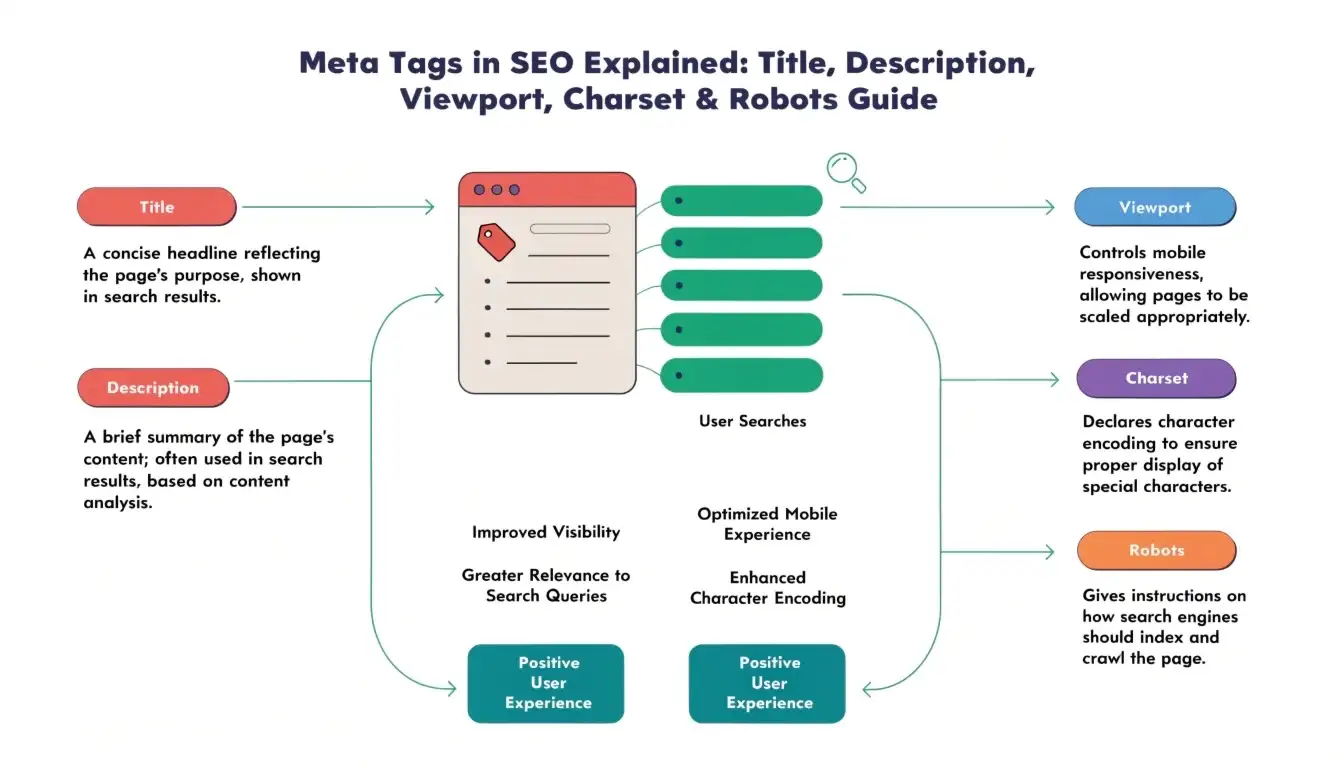
Meta tags are snippets of HTML code that live inside the <head> section of a webpage. They don’t appear on the page itself, but they communicate critical information to search engines like Google, Bing, and others. Think of meta tags as a behind-the-scenes briefing that tells search engines: what your page is about, how to index it, and how to display it in search results.
In this comprehensive guide, you’ll learn:
- What meta tags are and where they live in HTML
- The most important types of meta tags for SEO
- How meta viewport and charset affect user experience
- Why your meta title and description sometimes don’t show in search results
- How to write meta tags that actually improve rankings and click-through rates
Whether you’re a complete beginner or an experienced developer brushing up on best practices, this guide covers everything you need to know.
Also Read: How MCP Servers Turn Google Search Console Into an AI SEO Assistant
What Are Meta Tags?
Meta tags are HTML elements that provide metadata — data about data — for a webpage. They tell browsers and search engines how to interpret, display, and index a page without being visible to the user.
Placement in HTML
Meta tags are always placed inside the <head> section of an HTML document, like this:
<!DOCTYPE html>
<html lang=”en”>
<head>
<meta charset=”UTF-8″>
<meta name=”viewport” content=”width=device-width, initial-scale=1.0″>
<meta name=”description” content=”Learn everything about meta tags and SEO.”>
<title>Complete Guide to Meta Tags in SEO</title>
</head>
How Search Engines Use Them
When Googlebot crawls your page, it reads meta tags to understand context. The meta title becomes the clickable blue headline in search results. The meta description often becomes the snippet below it. Robots meta tags tell Google whether to index or follow a page. Getting these right is fundamental to solid on-page SEO.
Types of Important Meta Tags
Meta Title
The meta title (inside the <title> tag) is the single most important on-page SEO element. It is displayed as the headline in search engine results pages (SERPs) and in the browser tab.
- Importance for rankings: Google uses the title tag as a primary relevance signal. Including your target keyword here directly influences your chances of ranking.
- Importance for CTR: A compelling title entices users to click. Think of it as your ad headline.
Pixel vs Character Limits: Google displays approximately 50–60 characters (or around 600 pixels wide) before truncating. Going over this limit doesn’t hurt rankings, but your title will be cut off in SERPs — which can look unprofessional and reduce clicks.
Example of a good title: “Meta Tags in SEO: Complete Guide to Optimization (2025)”
Meta Description
The meta description is a short summary of your page that often appears as the snippet under your title in SERPs. It doesn’t directly influence rankings, but it significantly impacts click-through rate (CTR).
Optimal length: Keep it between 150–160 characters (or roughly 920 pixels). Longer descriptions get truncated.
Why Google rewrites it: Google reserves the right to rewrite your meta description if it feels its version better matches the user’s search query. This happens when: your description doesn’t contain the search keywords, the page content is more relevant than your written description, or the description is too short, too long, or stuffed with keywords.
Meta Charset
The charset meta tag defines the character encoding used in your HTML document.
<meta charset=”UTF-8″>
What it means: UTF-8 (Unicode Transformation Format, 8-bit) is a universal encoding standard that supports virtually every character from every language on earth — including special symbols, emojis, and non-Latin scripts.
Why UTF-8 is recommended: It ensures your text displays correctly across all browsers and devices, regardless of the user’s location or language settings.
Issues without charset: Without a charset declaration, browsers guess the encoding, which can result in garbled text (such as “’” instead of an apostrophe), SEO indexing errors, and broken page content.
Meta Viewport
The viewport meta tag controls how a web page is displayed on mobile devices. This is critical for mobile SEO, as Google uses mobile-first indexing — it ranks the mobile version of your site.
<meta name=”viewport” content=”width=device-width, initial-scale=1.0″>
Without this tag, mobile browsers render pages at a desktop width and then shrink them down — making text tiny and buttons difficult to tap.
width=device-width: Sets the page width to match the device’s screen width. So a page on a 375px-wide phone is rendered at 375px, not 1200px.
initial-scale=1.0: Sets the initial zoom level to 100% — no zooming in or out on load.
Deep Dive: Meta Viewport
Let’s break down the viewport meta tag more thoroughly, because getting this wrong can seriously harm your mobile SEO and user experience.
What Does initial-scale=1.0 Mean?
It means the page loads at 100% zoom — the default natural size. Users see text and images at their intended size, without automatic zooming in or out.
Can Users Change the Zoom?
Yes — by default, users can pinch-to-zoom on mobile. This is a temporary zoom; the page returns to the original scale when reloaded.
Some older sites used user-scalable=no to disable zooming, but this is now considered bad practice and actually violates accessibility guidelines. Google also penalizes pages that disable user scaling.
What If initial-scale is Set to 0.5?
Setting initial-scale=0.5 would load the page at 50% zoom — everything would appear half-sized. This is almost never intentional and would make text and buttons tiny and unreadable.
Conversely, initial-scale=2.0 loads the page at 200% zoom, meaning users would need to scroll horizontally to see everything — another UX disaster.
Why Incorrect Scaling Harms UX
Poor viewport settings directly affect bounce rate and dwell time — two signals Google monitors to assess page quality. If users arrive on a mobile page that’s misscaled or requires constant pinching, they leave quickly, signaling to Google that the page isn’t satisfying.
Robots Meta Tag
The robots meta tag tells search engines how to handle a specific page. It’s one of the most powerful — and most misused — meta tags in SEO.
<meta name=”robots” content=”index, follow”>
Index vs Noindex
index: Default behavior. Tells search engines to include this page in their index. Your page can appear in search results.
noindex: Tells search engines NOT to include this page in their index. The page will not appear in SERPs. Use this for: thank-you pages, admin pages, duplicate content, staging environments.
Follow vs Nofollow
follow: Default behavior. Search engines follow all links on the page and pass link equity (PageRank) through them.
nofollow: Tells crawlers not to follow links on the page. No PageRank is passed through any links. Use this for: untrusted content pages, UGC (user-generated content), or paid link pages.
What Does “index, nofollow” Mean?
A combination of index and nofollow means: “Yes, show this page in search results, but don’t follow any links on it.” This is useful for pages you want to rank but don’t want to pass link authority through — like a resource page containing external partner links.
Difference Between Noindex and Nofollow
These two directives are commonly confused, but they serve very different purposes. Here’s a clear breakdown:
| Feature | Noindex | Nofollow |
| Affects | Page visibility in SERPs | Link equity / PageRank passing |
| What it does | Removes page from search index | Stops crawlers from following links |
| Page still crawled? | Yes, but not indexed | Yes, and indexed unless noindex too |
| Links on page followed? | Yes (unless also nofollow) | No links are followed |
| Use case | Private, duplicate, or thin content pages | Paid links, untrusted external links |
| Example | <meta name=”robots” content=”noindex”> | <meta name=”robots” content=”nofollow”> |
Why Meta Title & Description Don’t Always Show
One of the most frustrating experiences in SEO is writing a perfect meta title and description, only to see Google display something completely different in search results. Here’s why this happens:
Pixel-Based Truncation
Google measures title and description length in pixels, not characters. A wide letter like ‘W’ takes more space than ‘i’. So a 60-character title might get cut off if it uses wide characters, while a 65-character title using narrow letters might display fine.
Search Engine Rewriting
Google rewrites titles and descriptions when it believes its version better matches the search query or page content. Common triggers include: titles that don’t match the page content, keyword stuffing in meta tags, descriptions that don’t contain relevant keywords, and titles written only for branding (e.g., “Home | My Brand”).
Query-Based Snippet Changes
Google dynamically generates snippets based on what the user searched. If someone searches for a specific term, Google might pull a sentence from your body content that contains that term — even if your meta description is well-written.
Device Differences
SERPs look different on mobile vs desktop. Mobile shows fewer characters before truncation, and the snippet layout differs. A description that looks perfect on desktop might be cut short on mobile.
Why SERP Snippets Change Across Devices & Keywords
You may have noticed that your page’s snippet looks different depending on what someone searches. This is entirely intentional on Google’s part.
Dynamic Snippet Generation
Google’s algorithm analyzes the entire body content of your page and constructs a snippet most relevant to the user’s query. It doesn’t always use what you wrote in the meta description — it uses whatever text best answers the question at hand.
Search Intent Matching
If someone searches “meta tags beginner guide,” Google might highlight introductory content. If they search “meta robots noindex explained,” Google might pull from a different section of the same page. This is Google trying to serve the most helpful snippet possible.
Personalization and Location Factors
Google personalizes results based on past search behavior, device type, and geographic location. Users in different countries, or with different browsing histories, may see different snippets for the same page. This is why “my website looks different in search” is such a common SEO complaint.
How to Make Meta Tags Display Properly
While Google has the final say, you can take steps to maximize the chances your meta tags appear as written.
Safe Pixel Limits for Title and Description
- Title: Keep under 60 characters / 600px. Aim for 50–55 characters for a safe buffer.
- Description: Keep between 120–155 characters. Shorter descriptions are less likely to be truncated on mobile.
Match Your Search Intent
Write your meta description to match what users who click your page are actually looking for. If your page targets “how to fix 404 errors,” your description should clearly confirm the page answers that question.
Align Your Title with H1
Your meta title and H1 don’t have to be identical, but they should be topically aligned. Mismatches confuse Google about your page’s core topic and may trigger a title rewrite.
Write Query-Focused Descriptions
Include your primary keyword naturally in the description. If Google highlights it as matching the user’s query, your snippet is less likely to be replaced.
Avoid Keyword Stuffing
Writing “SEO meta tags best meta tags SEO optimization meta description SEO” signals spam to Google and often results in the description being rewritten entirely.
Common Mistakes to Avoid
Missing Charset Declaration
Forgetting <meta charset=”UTF-8″> can result in garbled text, especially for non-English content. Always declare charset as the very first element inside <head>.
Wrong Viewport Usage
Using user-scalable=no is a major accessibility violation. Avoid maximum-scale=1 for similar reasons. These settings lock zoom and hurt usability for visually impaired users.
Duplicate Meta Tags
Having two <title> tags or two meta description tags confuses browsers and search engines. Audit your site with tools like Screaming Frog or Google Search Console to catch duplicates.
Over-Optimization
Cramming too many keywords into your title or description is counterproductive. Google penalizes keyword stuffing and may replace your carefully written tags with its own.
Incorrect Use of Nofollow
Adding nofollow to all internal links by mistake (e.g., through a misconfigured plugin) can prevent link equity from flowing through your site’s architecture — quietly damaging your SEO over time.
Best Practices Checklist
Use this quick checklist every time you publish or update a page:
- Include <meta charset=”UTF-8″> as the first element in <head>
- Add <meta name=”viewport” content=”width=device-width, initial-scale=1.0″> for mobile responsiveness
- Write a unique meta title for every page — keep it under 60 characters
- Include your primary keyword naturally in the title
- Align your title with the page’s H1 heading
- Write a compelling meta description (120–155 characters) that includes your target keyword
- Match your meta description to the search intent behind your target keyword
- Avoid duplicate meta titles and descriptions across pages
- Use noindex only for pages you genuinely don’t want indexed (admin, thank-you, staging pages)
- Use nofollow only for paid links, untrusted content, or links you don’t want to endorse
- Never use user-scalable=no in your viewport tag
- Test your snippets using Google’s Rich Results Test or a SERP preview tool
- Audit meta tags quarterly using Google Search Console’s Coverage and Performance reports
Conclusion
Meta tags are the unsung heroes of SEO. They operate invisibly in the background, yet they shape how your page appears in search results, how mobile users experience it, and how search engines decide to index and follow your content.
Here’s what we’ve covered in this guide:
- Meta tags live in the <head> of your HTML and communicate key signals to search engines.
- Meta title and description optimization directly impacts click-through rates and how Google represents your page in SERPs.
- Meta charset (UTF-8) ensures universal text rendering across all languages and devices.
- Meta viewport is essential for mobile-first indexing and user experience — set it correctly and never disable user scaling.
- The noindex vs nofollow distinction is critical — one removes pages from the index, the other stops link equity from flowing.
- Google rewrites meta tags dynamically — your best defense is writing accurate, intent-matched, non-stuffed tags.
The key takeaway? Meta tags influence SERP behavior — they don’t control it. Google always has the final say. But by following the best practices in this guide, you give your pages the best possible chance to rank well, display correctly, and attract clicks. Start by auditing your existing pages. Are your titles too long? Are descriptions missing? Is every page missing a viewport tag? Small technical fixes in meta tags often yield surprisingly large improvements in organic performance.