
Glossaries
- A Complete Real-World Guide
- Setup · Integration · Troubleshooting · Strategy
- Beginner to Intermediate · Technical SEO
- From 1,000+ errors to a clear weekly workflow — written from real experience.
Introduction: The Dashboard That Made Me Question Everything
I remember the exact moment I started doubting myself as an SEO. I was managing two websites — a content blog and a small e-commerce store — and both were connected to Google Search Console. I’d open one dashboard and see a clean, minimal interface with just performance data and a few coverage warnings. Then I’d open the other and find an entirely different set of sections: rich results, product data, merchant listings, breadcrumbs. Different menus. Different reports. Different everything.
I thought I had configured something wrong. Maybe I missed a setting. Maybe Google had rolled out an update I had not read about. I spent more time than I would like to admit searching for how to customize Google Search Console — only to find out there is no such option.
And then the real panic hit. Buried inside the Coverage report of one site was a wall of errors:

If you’ve ever stared at numbers like those, you know the feeling — a mix of dread, confusion, and the sneaking suspicion that your entire website is quietly collapsing in Google’s eyes. This guide is the article I wish I had found on that day — written from real experience, not theory.
What Is Google Search Console?
Let’s start from zero, because even if you’ve used it before, there’s a better way to think about what Google Search Console actually is.
Think of your website as a shop in a massive city — and Google as the city’s postal service, delivery network, and zoning office all rolled into one. Google Search Console is the direct communication channel between you, the shop owner, and Google. It tells you when a page can’t be found, or when it has found your product catalog and wants to show you how people are discovering it.
Official Definition: Google Search Console (formerly Google Webmaster Tools) is a free web service by Google that helps website owners monitor, maintain, and troubleshoot their site’s presence in Google Search results.
But that definition barely scratches the surface. In practice, Google Search Console is your most honest, unfiltered feedback loop from Google. No guessing. No third-party estimates. Actual data about how Google sees, crawls, and indexes your website.
Key Distinction: Google Search Console tells you how your site performs in Google Search. Google Analytics tells you what happens after someone lands on your site. They are complementary tools, not interchangeable ones.
How to Set Up Google Search Console (Step-by-Step)
Before you can use any of GSC’s features, you need to verify ownership of your website. Here is the complete setup process, broken down into clear steps.
Step 1 — Go to Google Search Console
Visit search.google.com/search-console and sign in with your Google account. Use the same Google account you use for Google Analytics if possible — it makes integration much smoother later.
Step 2 — Add a Property
Click “Add property” and choose between two property types:
| Property Type | What It Covers | Best For |
| Domain Property | Entire domain including all subdomains (http, https, www, non-www) | Most websites — gives complete picture |
| URL Prefix Property | Only a specific URL prefix like https://www.example.com/ | Specific subdirectories or for quick setup |
Recommendation: Always choose Domain Property when possible. It captures all traffic across all versions of your site, giving you the most complete data set.
Step 3 — Verify Ownership
Google offers several verification methods. Choose the one that works best for your setup:
- DNS Record (for Domain property) — Add a TXT record to your domain’s DNS settings. This is the most comprehensive method and required for Domain-level properties.
- HTML File Upload — Download a small HTML file from Google and upload it to your server’s root directory. Simple and reliable.
- HTML Meta Tag — Add a <meta> tag to the <head> of your homepage. Works well if you have direct access to your site’s code or a CMS.
- Google Analytics Tag — If GA4 is already installed on your site via gtag.js, you can use it to verify GSC instantly. This is the fastest method for sites already using Google Analytics.
- Google Tag Manager — If GTM is managing your tags, you can use the GTM container snippet to verify ownership.
Important: After verifying, do not remove the verification tag or DNS record. If Google cannot re-verify ownership periodically, you will lose access to your Search Console data.
Step 4 — Submit Your Sitemap
Once verified, go to Sitemaps in the left sidebar and submit your sitemap URL (usually yourdomain.com/sitemap.xml or yourdomain.com/sitemap_index.xml). This tells Google exactly which pages exist on your site and helps it crawl and index them faster.
Step 5 — Wait for Data
Google Search Console takes 24–72 hours to start showing initial data, and up to 2 weeks to fully populate the Performance report. Don’t be alarmed by empty dashboards in the first few days — this is normal.
Integrating Google Search Console with Google Analytics (GA4)
Linking Google Search Console with Google Analytics 4 is one of the most powerful moves you can make as an SEO. It brings your organic search data — queries, clicks, impressions, rankings — directly into GA4, letting you connect search behavior to on-site actions like conversions, bounce rate, and session duration.
Why This Integration Matters
- See which search queries bring in high-converting users — not just clicks.
- Understand if keywords ranking well are actually sending engaged visitors.
- Build audience segments in GA4 based on organic search behavior.
- Unlock the “Google organic search traffic” section inside GA4 reports.
How to Link GSC to GA4 — Step by Step
- Open Google Analytics 4 and go to Admin (gear icon at the bottom left).
- Under Property, click on Property Settings, then scroll to find Search Console Links.
- Click Link and then choose your verified GSC property from the list.
- Select the GA4 Data Stream you want to associate (your website’s web stream).
- Confirm and click Submit.
Note: The integration is property-level in GA4. Make sure you are in the correct GA4 property before linking. If you manage multiple websites, link each GSC property to its corresponding GA4 property separately.
Where to Find the Data in GA4
After linking, navigate to Reports > Acquisition > Acquisition Overview, then look for the “Google organic search traffic” card. You can also go to Reports > Acquisition > Search Console to find dedicated reports showing Queries, Google organic search pages, Countries, and Devices.
Pro Tip: In GA4, create a custom exploration report that combines Search Console query data with conversion events. This tells you not just which keywords bring traffic, but which keywords bring customers — a massive strategic advantage.
Integrating Google Search Console with Google Tag Manager
Google Tag Manager (GTM) and Google Search Console have two main points of integration: using GTM for GSC ownership verification, and using GTM to deploy the GA4 tag that connects to your GSC data.
Method 1 — Verify GSC Ownership via GTM
This is the quickest way to verify GSC if GTM is already installed on your site. Here’s how:
- In Google Search Console, choose URL Prefix property and enter your website URL.
- When asked to verify, select Google Tag Manager from the list of methods.
- GSC will show you your GTM Container ID (format: GTM-XXXXXXX). Confirm it matches the GTM container already installed on your site.
- Click Verify. Google will check that the GTM snippet is live on your homepage and confirm ownership.
Limitation: GTM verification only works for URL Prefix properties, not Domain properties. For full domain coverage, use DNS TXT record verification instead.
Method 2 — Deploy GA4 via GTM to Unlock GSC Integration
If your GA4 tag is being fired through GTM (the most common enterprise setup), the GSC-to-GA4 link will still work — because what matters is the GA4 Measurement ID, not how it’s deployed. Here’s the recommended configuration:
- In GTM, create a new Tag with type Google Tag (or Google Analytics: GA4 Configuration).
- Enter your GA4 Measurement ID (format: G-XXXXXXXXXX).
- Set the trigger to All Pages.
- Publish the container.
- Now link your GSC property to the GA4 property (as described in Section 4 above). The data will flow correctly regardless of whether GA4 was deployed directly or via GTM.
GTM vs Direct GA4 Deployment — GSC Integration Comparison
| Factor | GTM Deployment | Direct gtag.js Deployment |
| GSC Verification | Via GTM Container ID (URL Prefix only) | Via meta tag or HTML file |
| GSC-GA4 Link | Works fully — uses GA4 Measurement ID | Works fully |
| Flexibility | High — update tags without code changes | Lower — code changes required |
| Recommended for | Larger sites, agencies, enterprise | Simple sites, direct developer access |
Key Features of Google Search Console (Explained Practically)
Every section inside Google Search Console exists for a reason. Here’s what each one actually means in plain terms.
Performance Report
The Performance report shows how your pages appear in Google Search — total clicks, impressions, average click-through rate (CTR), and average position. You can filter by query, page, country, device, and more.
What most people miss: you can cross-reference queries with pages. If a page is getting 5,000 impressions but only 20 clicks, your title tag or meta description isn’t compelling enough. If a page ranks at position 4 for a high-volume keyword, a small optimization push might land you in the top 3.
Quick Win: Filter by impressions > 500 but CTR < 2% to find low-hanging fruit — pages Google already shows for relevant searches, but that aren’t getting clicks. Fix the title. Update the meta description.
Pages (Indexing & Coverage) Report
This report tells you which URLs Google has indexed, which it tried to index but couldn’t, and which it found but decided to ignore. The four key statuses are:
- Indexed — Google has added this page to its search index.
- Indexed with warnings — The page is live but has a potential issue worth reviewing.
- Not Indexed — Google found the page but chose not to or couldn’t index it. This is where 404s and soft 404s live.
- Excluded — Google intentionally skipped this page due to noindex, canonical mismatch, or redirect.
URL Inspection Tool
Think of this as a magnifying glass for any individual URL. It tells you: is the page indexed? When was it last crawled? What did Googlebot see when it rendered the page? Are there structured data errors? It also lets you request indexing for newly published or updated pages.
Core Web Vitals
Core Web Vitals are Google’s measure of user experience. The three key metrics are:
- LCP (Largest Contentful Paint) — How fast does the main content load? Target: under 2.5 seconds.
- INP (Interaction to Next Paint) — How quickly does the page respond to user input? Target: under 200ms.
- CLS (Cumulative Layout Shift) — Do elements jump around during page load? Target: under 0.1.
Enhancements (Schema & Rich Results)
This section only appears when Google has detected structured data (schema markup) on your website. It shows whether your schema is valid, and whether your pages are eligible for rich results in Google Search — like star ratings, product prices, recipe metadata, and FAQ dropdowns.
My Real Experience with GSC Errors
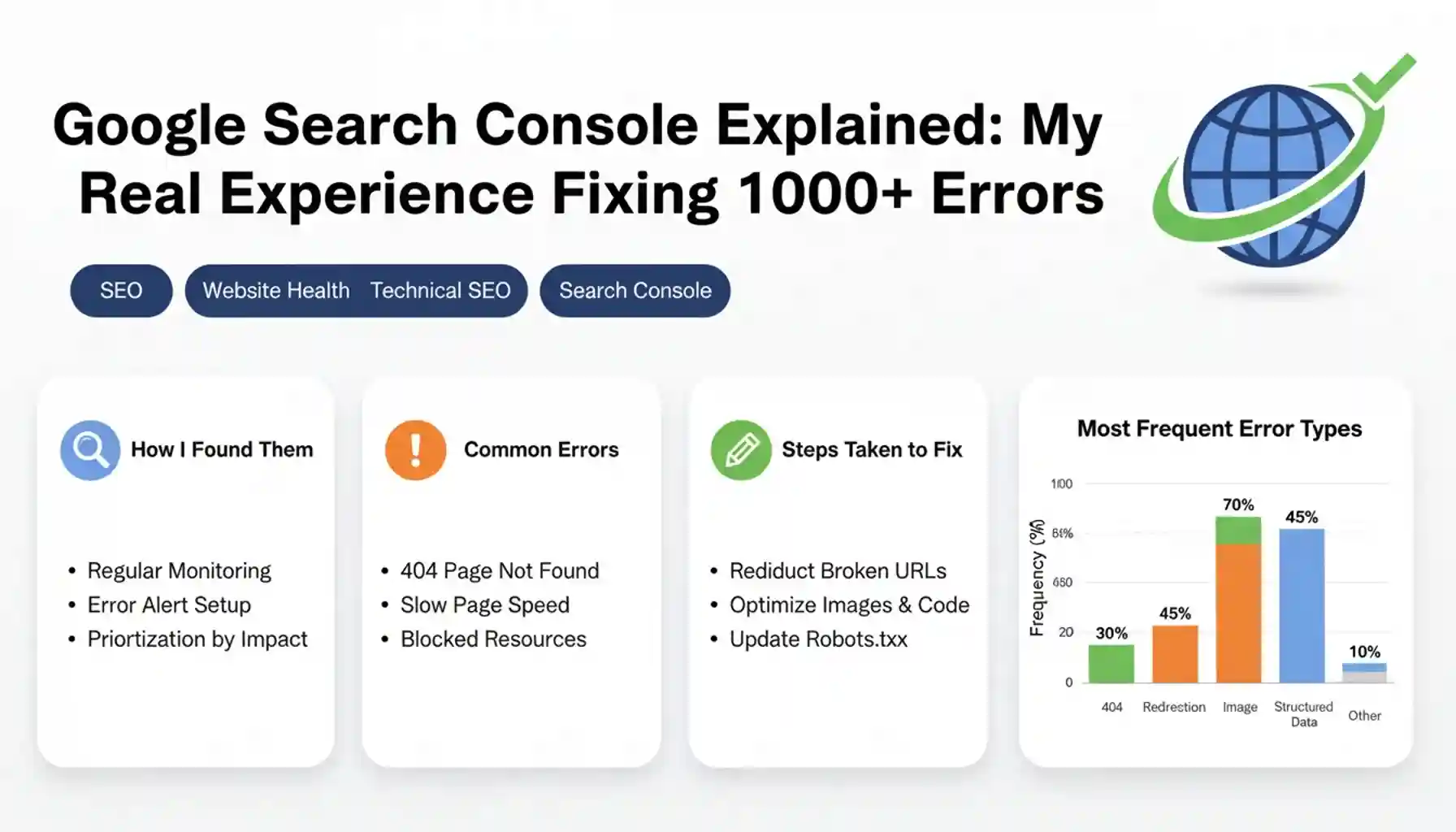
The 1,000+ Hard 404 Errors
When I first saw over a thousand 404 errors, my immediate assumption was: my website is broken. The truth was more nuanced. After digging in, the 404s fell into three categories:
- Old URLs from a blog migration that Google still remembered but the pages no longer existed.
- Bad backlinks from external sites pointing to slightly wrong URL slugs.
- Crawling artifacts from old pagination plugins that had since been removed.
Key Learning: Not all 404 errors are emergencies. Ask yourself: should this page exist? If yes, fix it. If no, either redirect it to the most relevant live page or let it naturally drop from Google’s index.
The 500+ Soft 404 Errors
Soft 404s are trickier — and often more damaging — than hard 404s. A soft 404 happens when a page returns a 200 OK status code (the server says everything is fine) but the content is so thin or empty that Google decides the page doesn’t meaningfully exist.
On my site, most soft 404s came from filter pages with zero products, search result pages being indexed with unique query strings, and archive pages with only one post and mostly boilerplate text.
Why Soft 404s Matter: Google is saying: ‘Your server told me this page exists, but there’s nothing valuable here.’ The fix involves adding noindex tags to genuinely thin pages and ensuring empty filter/search pages return proper 404 status codes.
The 400+ Redirect Issues — The Redirect Chain Problem
Redirects seemed simple at first. Then I discovered a classic redirect chain — a multi-hop sequence where Google had to follow multiple redirects instead of one direct jump:
The fix: collapse the chain. If A should go to C, point A directly to C and remove B from the equation. Google’s crawl efficiency improved, and the redirect count in GSC dropped significantly within weeks.
Why Different Websites Show Different GSC Dashboards
This was the mystery that bothered me most. The answer: Google Search Console dynamically adapts to your website. It shows data and tools relevant to what Google actually finds on your site. Three factors drive this:
1. Structured Data (Schema Markup)
If your website uses schema markup, Google Search Console shows dedicated Enhancement reports for each schema type it detects. An e-commerce site using Product schema sees a Shopping section. A recipe blog using Recipe schema sees a Recipes section. A site with zero schema sees none of these.
2. Content Type
Google identifies the kind of content on your site and reflects it in the dashboard. A video-heavy website may see a Video indexing section. A news publisher approved for Google News sees a News section. A job listings site may see a Job Postings report.
3. Website Functionality & Features
Integration with Google Merchant Center, Web Stories, or a sitelinks search box all add dedicated sections to your GSC dashboard. The more feature-rich your site, the more data Google Search Console shows you.
Bottom Line: Google Search Console cannot be customized by you — but it is automatically customized by Google based on what it finds on your website. The richer your content and schema strategy, the more powerful your GSC dashboard becomes.
How GSC Looks Different Across Website Niches
Here is a practical comparison of what Google Search Console typically shows for different website types, what sections appear, and what you should focus on in each case:
| Website Type | Typical GSC Sections | Key Focus Areas | Common Issues |
| E-Commerce | Products, Shopping, Breadcrumbs, Merchant Center | Product schema errors, crawl budget for large catalogs | Faceted navigation creating duplicate pages, out-of-stock 404s |
| Blog / Content | Articles, Sitelinks, Breadcrumbs | Indexing speed for new posts, CTR optimization | Soft 404s on thin archive pages, slow indexing of new posts |
| Video Website | Video indexing, Video enhancements | Video schema validity, thumbnail appearance in search | Missing video schema, videos not eligible for video carousels |
| Local Business | Local Business schema, Reviews | NAP consistency, local rich result eligibility | Inconsistent NAP data, missing LocalBusiness schema |
| News / Publisher | News section, Articles, AMP | AMP errors, news carousel eligibility | AMP validation failures, freshness signal issues |
| Recipe / Food | Recipes, How-to, FAQ | Recipe rich result validity, step markup | Missing required recipe fields (prep time, calories, image) |
Can You Customize Google Search Console?
Short answer: No — not within GSC itself. There are no themes, no custom dashboards, no drag-and-drop widgets. The date range filter, the ability to compare two periods, and export to Google Sheets — that’s roughly the limit of what you can configure directly.
Looker Studio: Build Your Own GSC Dashboard
Google Looker Studio (formerly Data Studio) connects directly to Google Search Console data via an official connector. Once connected, you can:
- Combine GSC data with Google Analytics 4 in a single view.
- Visualize trends over 16+ months (GSC natively only shows 16 months).
- Create shareable client reports with your branding.
- Design views tailored to specific teams — content, dev, marketing, management.
Workflow Idea: Connect your GSC and GA4 properties to Looker Studio and build a single dashboard showing: top queries by impression, top pages by click, Core Web Vitals trend, and 404 error count. This combination is something neither tool offers alone.
My Weekly Google Search Console Workflow
After months of trial, error, and a lot of confused dashboard-staring, here is the actual routine that works for me:
Monday — Health Check
- Open the Pages (Coverage) report. Look for any new Not Indexed URLs in the past 7 days.
- Check Enhancement reports for new schema errors or warnings.
- Review the Core Web Vitals report for any new URLs that moved to Poor status.
Wednesday — Performance Deep Dive
- Compare the last 28 days vs the previous 28 days in the Performance report.
- Flag any pages that dropped in clicks or average position. Cross-reference with recent content or technical changes.
- Filter for queries with 200+ impressions and CTR under 3%. Update title tags and meta descriptions for the top 5 opportunities.
Friday — Indexing & New Content
- For every significant new page published this week, run it through URL Inspection and request indexing.
- Check that submitted sitemaps have no errors in the Sitemaps report.
Monthly — Redirect & 404 Audit
- Export all 404 errors from the Pages report and categorize them: fix, redirect, or ignore.
- Audit your redirect list for chains (A → B → C) and collapse them to direct 301s.
- Review soft 404s and decide which pages need noindex tags or better content.
Key Learnings & Insights from the Trenches
- Not every 404 error is a crisis. Triage them by traffic potential and link equity. Old, low-value URLs that 404’d are rarely worth losing sleep over.
- Soft 404s are often more damaging than hard 404s because your server says everything is fine while Google quietly ignores those pages.
- Redirect chains are a silent SEO tax. Every hop costs authority and crawl efficiency. Audit redirects every six months minimum.
- The differences between websites in GSC are a feature, not a bug. A richer dashboard means your schema and content strategy are more developed.
- GSC data has a 2–4 day delay. After making a fix, give it a week before evaluating impact. Don’t obsessively refresh.
- Impressions without clicks aren’t always a problem — sometimes users get their answer from the SERP snippet. Context matters.
- Looker Studio is the upgrade GSC never received. If you report to clients or a team, the investment in a custom dashboard pays for itself in clarity and saved time.
- Always link GSC to GA4. The combined view of search visibility and on-site behavior is far more powerful than either tool alone.
Conclusion
Google Search Console is not the most glamorous tool in the SEO stack. It doesn’t have a slick interface, it doesn’t offer AI-powered recommendations, and it definitely doesn’t hold your hand through the tough moments — like when you discover a thousand broken URLs staring back at you.
But it is the most honest tool you have. Every number in there comes directly from Google. Every error is a real signal. Every impression is a real search query where your page appeared. There is no algorithm guessing, no third-party estimation — just the raw relationship between your website and the world’s largest search engine, laid out in front of you.
When I finally stopped being intimidated by the errors and started treating them as data — as information to act on rather than evidence of failure — Google Search Console went from a source of anxiety to the most useful tab I open every week.
Remember: Start small. Fix one category of errors at a time. Build the habit of checking GSC regularly. Set it up properly, link it to GA4 and GTM, and let the data guide your decisions. The fact that Google Search Console is showing you problems means it’s working exactly as intended. You can’t fix what you can’t see.
Frequently Asked Questions
How long does it take for Google Search Console to reflect fixes I’ve made?
GSC data typically has a 2–4 day delay, and indexing changes can take weeks to fully reflect. After fixing 404 errors or redirect chains, expect to wait 2–4 weeks before error counts drop significantly. Use URL Inspection to request re-indexing for individual pages.
Why does my Google Search Console look different from someone else’s dashboard?
GSC dynamically shows sections based on what it detects on your website. Structured data (schema markup), video content, Merchant Center integration, and specific content types like recipes or news articles all unlock additional sections automatically.
What is the difference between a 404 error and a soft 404?
A hard 404 means the server returns a 404 Not Found status code — the page genuinely doesn’t exist. A soft 404 means the server returns 200 OK, but Google decides the content is too thin or empty to be a real page. Soft 404s are trickier because your server thinks everything is fine.
Can I use Google Search Console for multiple websites?
A: Yes. You can add and manage multiple properties in a single Google account. Each property is independent — you verify ownership and view data separately. You can also add multiple users with different permission levels (owner, full user, restricted user).
Is Google Search Console useful for brand-new websites?
A: Absolutely — and arguably more so for new websites. Connecting a new site to GSC and submitting a sitemap is one of the first things you should do. It helps Google discover your pages faster, alerts you to technical issues early, and gives you real data on how Google sees your site from day one.